Skip to content

YOUR FIRST CAMPAIGN

A clear brief.
A better beginning.

Bring your topic, define your audience and prepare your message. Save a campaign brief on this device, then take it into Claude or to your success manager.

Brief builder only. The upgraded Reach workflow and console remain in private preview.

Claude
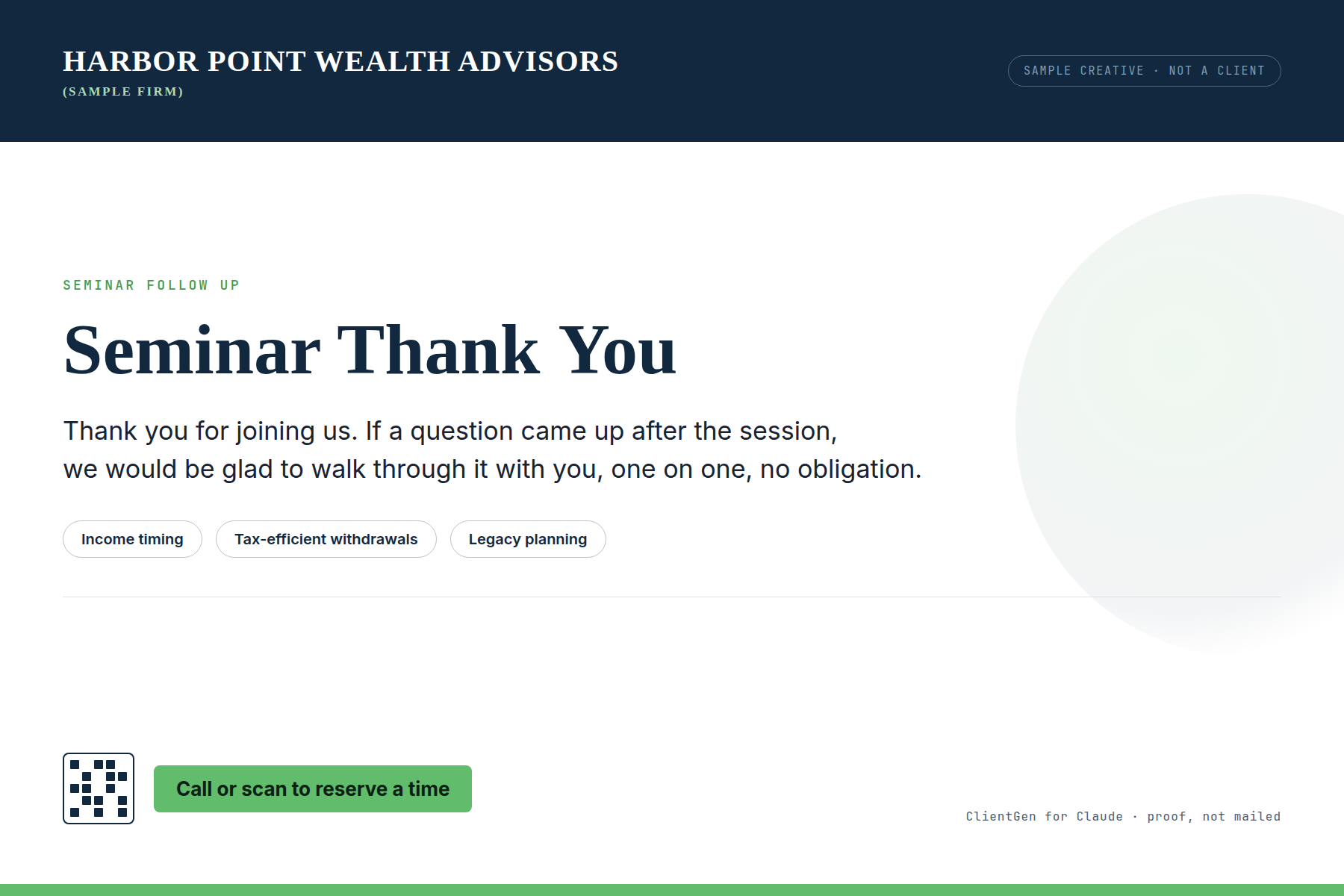
Sample ClientGen postcard creative
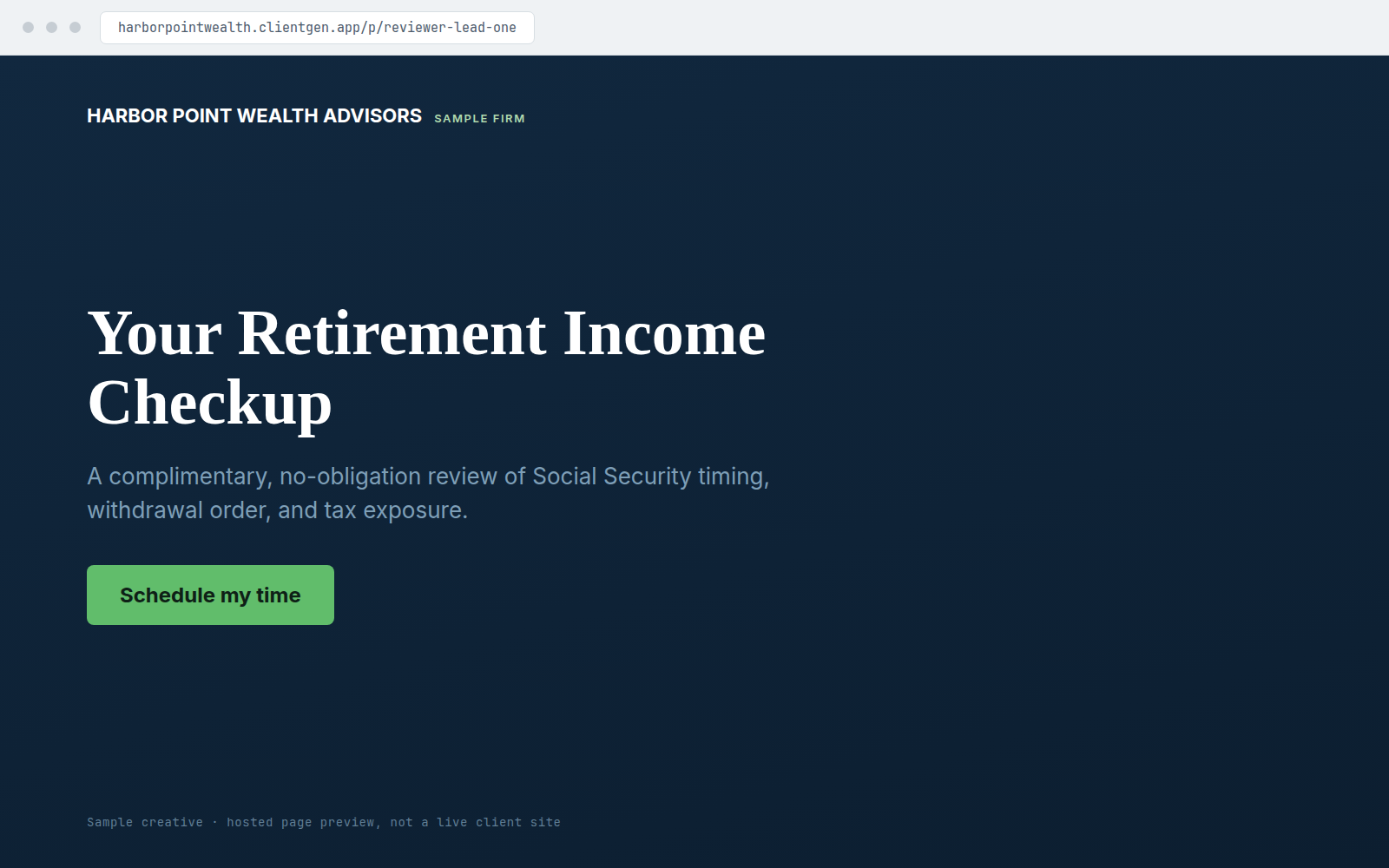
ONE CLEAR NEXT STEP Sample matching campaign landing page
Sample creative · Your brand, your approved message
MY FIRST CAMPAIGN

Your preparation, one step at a time.

Bring a clear brief into Claude, or share it with your success manager.

0/ 4 ready
  1. 1Practice detailsTo do
  2. 2Audience definedTo do
  3. 3Format chosenTo do
  4. 4Brief preparedTo do
01 Start with your practice

The connector will ask for any additional brand details it needs.

02 Define your audience

Describe a group. Keep individual client names, contact details and financial information out of this brief.

03 Choose the invitation

Saved only in this browser when you choose “Save for later.” Nothing here is submitted to our team or the connector.

WHEN YOU’RE READY TO CONNECT

Here’s what setup looks like.

Open the full screenshot guide
Claude Customize screen with the Connectors tab selected and Add custom connector visible under the Add menu
01Open the connector menu
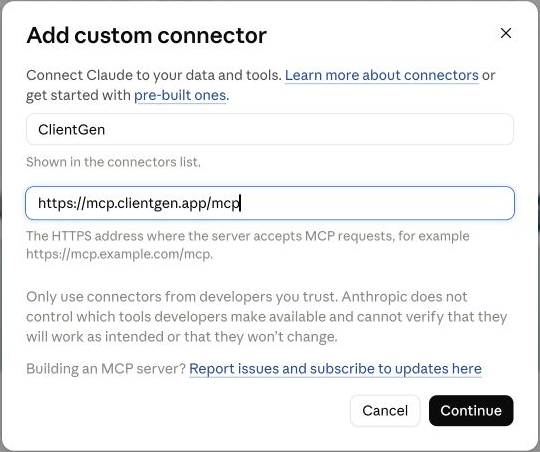
Add custom connector form with ClientGen as the name, https://mcp.clientgen.app/mcp as the server URL, and a Continue button
02Paste the ClientGen URL
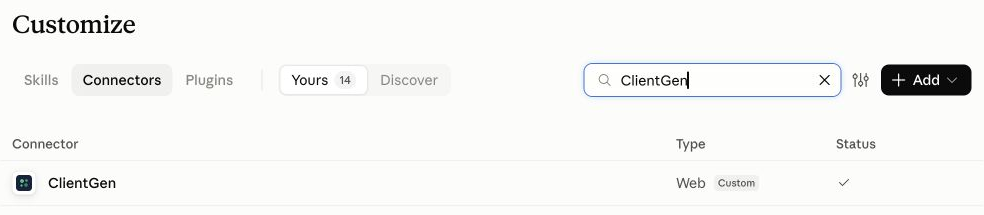
Claude Yours tab filtered to ClientGen, showing a checkmark in the Status column
03Sign in and confirm the connection
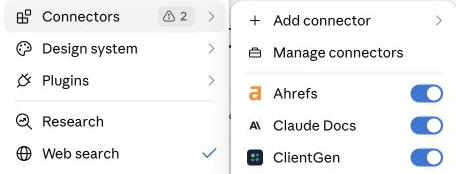
Claude chat menu with Connectors open and the ClientGen switch turned on in blue
04Enable ClientGen in your chat
Download the installation guide ↓